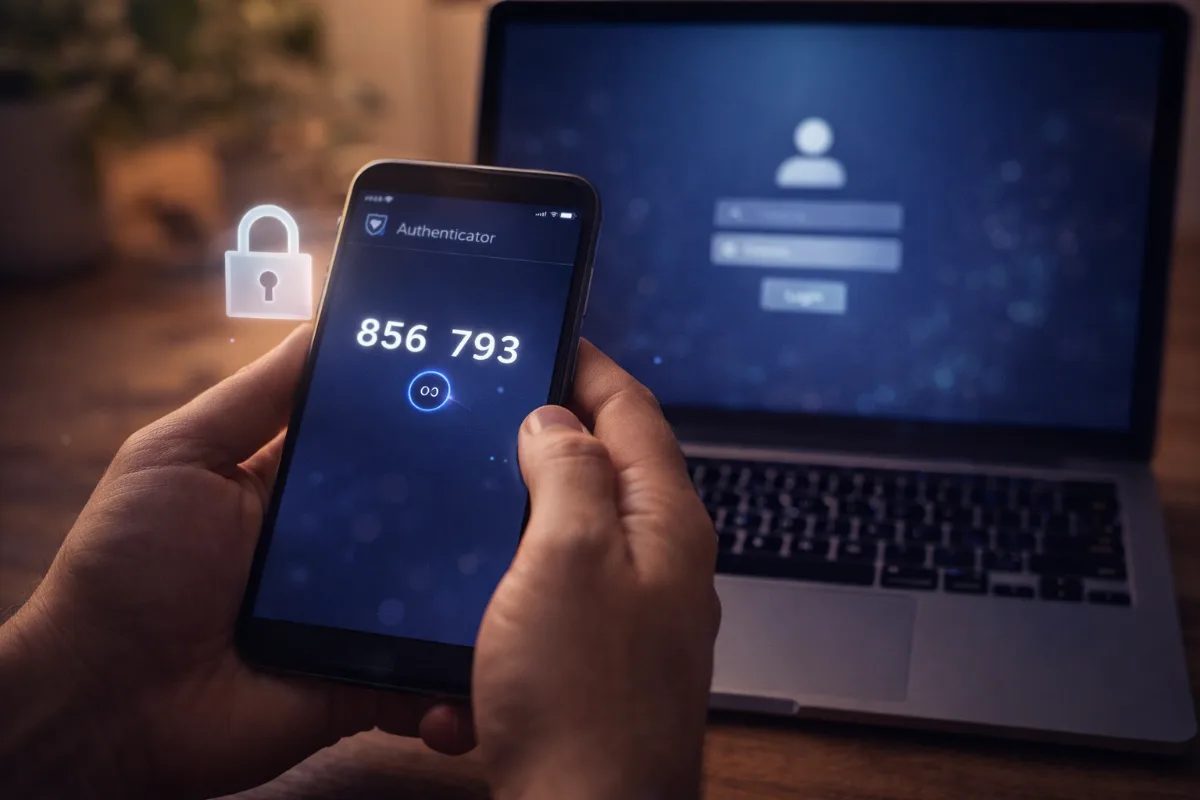
Two-factor authentication (2FA) is your digital security seatbelt – it might seem like extra work, but it could save your life online. In this guide, you'll learn exactly how to set up 2FA on every account that matters, understand the different types available, and build an unbreachable security foundation.
By the end of this guide, you'll have transformed your online security from vulnerable to virtually impenetrable, protecting everything from your bank account to your social media profiles.
What You'll Need Before Starting
Essential Items:
- - A smartphone (iOS or Android)
- - Access to your email accounts
- - Phone number that can receive SMS messages
- - 30-60 minutes of uninterrupted time
Optional But Recommended:
- - Hardware security key (like YubiKey or Google Titan)
- - Backup phone or tablet
- - Password manager subscription
Important Note: Never set up 2FA when you're traveling or might lose access to your primary devices. Always complete setup when you're in a stable environment.
Understanding Two-Factor Authentication Types
SMS Text Messages (Least Secure)
Your phone receives a code via text message. While better than no 2FA, SMS can be intercepted through SIM swapping attacks. Use this only when no other options exist.
Best for: Services that only offer SMS 2FA Avoid when: More secure options are available
Authenticator Apps (Recommended)
Apps like Google Authenticator, Authy, or Microsoft Authenticator generate time-based codes. These work offline and are much more secure than SMS.
Best for: Most online accounts Top choice: Authy (syncs across devices with backup)
Hardware Security Keys (Most Secure)
Physical devices like YubiKey that you insert into your computer or tap on your phone. Nearly impossible to hack remotely.
Best for: High-value accounts (banking, work, primary email) Investment: $25-50 per key
Backup Codes (Emergency Access)
One-time codes you save for when you lose your primary 2FA method. Treat these like cash – store them securely.
Critical: Always download and save backup codes immediately after enabling 2FA
Step 1: Choose and Install Your Authenticator App
Installing Authy (Recommended for Beginners)
- 1. Download Authy from your device's official app store
- 2. Open the app and tap "Get Started"
- 3. Enter your phone number and verify with the SMS code
- 4. Create a backup password – make this unique and strong
- 5. Enable multi-device sync for easier management
- 6. Write down your backup password and store it safely
Alternative: Google Authenticator Setup
- 1. Download Google Authenticator from the app store
- 2. Open and tap "Get Started"
- 3. Choose "Scan a QR code" when adding your first account
- 4. Note: Google Authenticator doesn't sync between devices automatically
Pro Tip: If you choose Google Authenticator, set it up on two devices immediately to avoid lockouts.
Step 2: Secure Your Email Accounts First
Email is the master key to your digital life. If someone controls your email, they can reset passwords for everything else.
Gmail Two-Factor Authentication
- 1. Go to myaccount.google.com and sign in
- 2. Click "Security" in the left sidebar
- 3. Find "2-Step Verification" and click "Get Started"
- 4. Verify your phone number with SMS (temporary step)
- 5. Click "Set up" under "Authenticator app"
- 6. Open your authenticator app and scan the QR code
- 7. Enter the 6-digit code from your app
- 8. Click "Turn On" to activate
- 9. Download backup codes and save them securely
Outlook/Hotmail Two-Factor Authentication
- 1. Visit account.microsoft.com and sign in
- 2. Click "Security" at the top
- 3. Select "Advanced security options"
- 4. Click "Turn on two-step verification"
- 5. Choose "Use an app" instead of SMS
- 6. Scan the QR code with your authenticator app
- 7. Enter the verification code
- 8. Save the recovery code provided
Apple ID Two-Factor Authentication
- 1. Go to appleid.apple.com and sign in
- 2. Click "Sign-In and Security"
- 3. Select "Two-Factor Authentication"
- 4. Click "Get Started"
- 5. Choose "Other Options" then "Use Authenticator App"
- 6. Scan the QR code with your app
- 7. Enter the verification code
- 8. Write down the recovery key shown
Step 3: Protect Your Financial Accounts
Banking Apps and Websites
Most major banks now offer 2FA. The setup process is similar across institutions:
- 1. Log into your online banking
- 2. Navigate to "Security Settings" or "Account Settings"
- 3. Look for "Two-Factor Authentication" or "Multi-Factor Authentication"
- 4. Choose authenticator app over SMS when possible
- 5. Follow the setup wizard
- 6. Test the setup before logging out
Banks with Strong 2FA Support (as of 2026):
- - Bank of America
- - Chase
- - Wells Fargo
- - Capital One
- - USAA
- - Most credit unions
PayPal Two-Factor Authentication
- 1. Log into PayPal and click the gear icon
- 2. Select "Security" from the menu
- 3. Click "2-step verification"
- 4. Choose "Try It" next to authentication app
- 5. Scan QR code with your authenticator
- 6. Enter the code and confirm setup
- 7. Generate backup codes for emergencies
Cryptocurrency Exchanges
Crypto accounts are prime targets. Never use SMS 2FA for these – always use authenticator apps or hardware keys.
Setup Process (Similar for Coinbase, Binance, Kraken):
- 1. Go to Security Settings
- 2. Enable "Two-Factor Authentication"
- 3. Choose "Authenticator App"
- 4. Scan QR code and verify
- 5. Download backup codes immediately
- 6. Consider adding a hardware key for large holdings
Step 4: Secure Social Media and Communication
Facebook Two-Factor Authentication
- 1. Click the dropdown arrow in the top right
- 2. Select "Settings & Privacy" > "Settings"
- 3. Click "Security and Login" in left menu
- 4. Find "Use two-factor authentication" and click "Edit"
- 5. Choose "Authentication app"
- 6. Scan the QR code with your authenticator
- 7. Enter the code and click "Confirm"
- 8. Save recovery codes when prompted
Instagram Two-Factor Authentication
- 1. Go to your profile and tap the three lines
- 2. Tap "Settings" then "Security"
- 3. Tap "Two-Factor Authentication"
- 4. Select "Authentication App"
- 5. Tap "Set up manually" and copy the code
- 6. Add to your authenticator app manually
- 7. Enter the generated code to confirm
WhatsApp Two-Step Verification
- 1. Open WhatsApp and go to Settings
- 2. Tap "Account" then "Two-step verification"
- 3. Tap "Enable"
- 4. Create a 6-digit PIN (not your phone unlock code)
- 5. Add your email address for PIN recovery
- 6. Confirm your email when prompted
Important: WhatsApp's system is different – it's a PIN plus your phone number, not traditional 2FA.
Step 5: Protect Cloud Storage and Productivity Apps
Dropbox Two-Factor Authentication
- 1. Sign into Dropbox and click your avatar
- 2. Select "Settings"
- 3. Click "Security" tab
- 4. Toggle on "Two-step verification"
- 5. Choose "Mobile app" option
- 6. Scan QR code with authenticator
- 7. Enter verification code
- 8. Save emergency backup codes
Microsoft Office 365/OneDrive
This uses the same Microsoft account setup covered in the email section. If you've already secured your Microsoft account, your Office 365 and OneDrive are automatically protected.
Slack Two-Factor Authentication
- 1. Click your workspace name in the top left
- 2. Select "Settings & administration" > "Account settings"
- 3. Click "Two-factor authentication"
- 4. Choose "Set up using an app"
- 5. Scan QR code with your authenticator
- 6. Enter the 6-digit code
- 7. Download backup codes
Step 6: Secure Shopping and Subscription Services
Amazon Two-Step Verification
- 1. Go to "Your Account" and click "Login & security"
- 2. Click "Edit" next to "Two-Step Verification Settings"
- 3. Select "Authenticator App"
- 4. Click "Can't scan the barcode?" for manual setup
- 5. Enter the key in your authenticator app
- 6. Enter the generated code to verify
- 7. Add backup phone number for account recovery
Netflix (Limited 2FA)
Netflix doesn't offer traditional 2FA, but you can:
- 1. Enable "Require sign-in on new devices"
- 2. Set up account activity monitoring
- 3. Use a unique, strong password
Advanced Security: Hardware Keys
When to Use Hardware Keys
Essential for:
- - Primary email accounts
- - Banking and investment accounts
- - Work accounts with sensitive data
- - Cryptocurrency exchanges
- - Any account you absolutely cannot afford to lose
Setting Up a YubiKey
- 1. Purchase a YubiKey (YubiKey 5 series recommended)
- 2. Visit the service you want to protect
- 3. Go to security settings
- 4. Look for "Security Keys" or "FIDO2" options
- 5. Insert your YubiKey when prompted
- 6. Touch the gold contact to verify
- 7. Name your key (like "Main YubiKey")
- 8. Test the setup before completing
Pro Tip: Buy two identical keys and set up both immediately. Keep one as a backup in a secure location.
Common Mistakes to Avoid
The Screenshot Trap
Never screenshot QR codes or backup codes. These images sync to cloud storage and create security vulnerabilities. Write codes down physically or use a secure password manager.
Single Point of Failure
Don't rely on just one device or method. If your phone breaks and it's your only 2FA method, you're locked out of everything.
Ignoring Backup Codes
Every service provides backup codes when you enable 2FA. Download and store these immediately – they're your lifeline if you lose your primary 2FA method.
Using SMS When Better Options Exist
SMS 2FA is vulnerable to SIM swapping attacks. Always choose authenticator apps or hardware keys when available.
Troubleshooting Common Issues
"Invalid Code" Errors
Check your device's time: Authenticator codes are time-based. If your phone's clock is wrong, codes won't work.
- 1. Go to device settings
- 2. Find "Date & Time"
- 3. Enable "Automatic date & time"
- 4. Wait 30 seconds and try again
Lost Authenticator App Access
- 1. Use backup codes you saved during setup
- 2. Contact customer support with account verification
- 3. Use backup authentication method if configured
- 4. Reset 2FA through account recovery process
New Phone Setup
Before switching phones:
- 1. Export/backup your authenticator app data
- 2. Temporarily disable 2FA on critical accounts
- 3. Set up authenticator on new phone
- 4. Re-enable 2FA on all accounts
- 5. Test everything before disposing of old phone
Creating Your Security Maintenance Schedule
Monthly Tasks
- - Review active sessions on all major accounts
- - Check for unusual login activity
- - Update any changed phone numbers
Quarterly Tasks
- - Test backup codes on one non-critical account
- - Verify backup authentication methods work
- - Update emergency contact information
Annual Tasks
- - Rotate backup codes by disabling and re-enabling 2FA
- - Review and update hardware keys
- - Audit all accounts with 2FA enabled
Emergency Access Planning
Creating a Recovery Plan
- 1. Document all accounts with 2FA enabled
- 2. Store backup codes in multiple secure locations
- 3. Share emergency access with a trusted family member
- 4. Create a digital estate plan including 2FA recovery
Secure Storage Options
Physical storage:
- - Fireproof safe at home
- - Safety deposit box
- - Trusted family member's secure location
Digital storage:
- - Encrypted password manager
- - Encrypted USB drive in safe
- - Secure cloud storage with strong encryption
What to Do Now
Immediate Actions (Next 30 Minutes):
- 1. Install Authy or Google Authenticator on your phone
- 2. Enable 2FA on your primary email account
- 3. Set up 2FA on your most important financial account
- 4. Download and securely store backup codes for both
This Week:
- 1. Enable 2FA on all remaining email accounts
- 2. Secure all financial and banking accounts
- 3. Set up 2FA on social media accounts
- 4. Create a secure storage system for backup codes
This Month:
- 1. Enable 2FA on all remaining online accounts
- 2. Consider purchasing hardware security keys
- 3. Set up backup authentication methods
- 4. Create your emergency access plan
- 5. Schedule regular security reviews
Start with your most critical accounts first – email and banking. These form the foundation of your digital security. Once they're protected, work through the rest of your accounts systematically. Remember, the best 2FA setup is the one you'll actually use and maintain consistently.