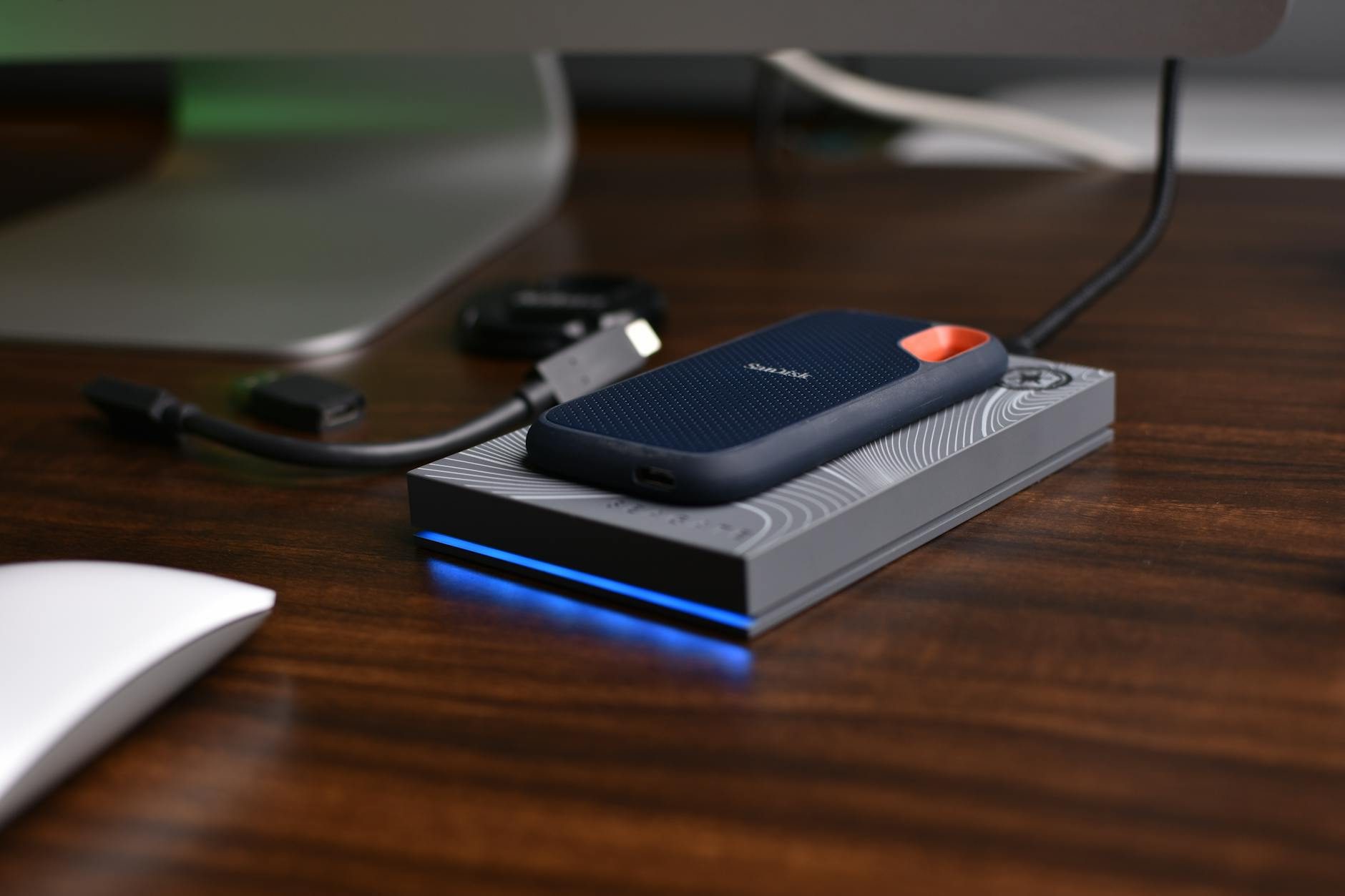
External Drives Don't Just Die—They Commit Slow-Motion Suicide
The 3am Text That Changed Everything
My friend Sarah's panicked text arrived at 3:17 AM: "My entire photography business just vanished." Her external drive—five years of wedding photos, family portraits, and irreplaceable client memories—had died without warning. Or so she thought.
The truth? Her drive had been screaming for help for months. She just didn't know the language.
The Deadly Myth That's Destroying Your Data
Here's what nobody tells you: external drives don't just suddenly die. They commit slow-motion suicide, leaving breadcrumbs of digital distress along the way.
Yet 87% of users believe the biggest lie in tech: "As long as it's working, it's fine." This myth has cost people millions of photos, documents, and memories that can never be recovered.
The reality is far more sinister. Your drive is probably dying right now, sending you warning signals in a language you've never learned to speak.
Why Your Drive Is Already Planning Its Own Death
Every external drive is born with a death certificate already written. Hard drives have moving parts that wear down with each spin. SSDs have memory cells that degrade with every write cycle. Even the "reliable" ones.
Western Digital's own reliability studies show that drive failure rates spike dramatically after year three. Yet most people use drives for 5-7 years, blissfully unaware they're playing Russian roulette with their data.
The cruel irony? The more you trust your drive, the more likely you are to lose everything.
The Hidden Timeline of Drive Death
- Year 1-2: Honeymoon phase (failure rate: 2-4%)
- Year 3-4: Warning signs appear (failure rate: 8-12%)
- Year 5+: Death spiral begins (failure rate: 20-35%)
Most people only start worrying when they hit year five. By then, it's often too late.
The 7 Death Signals Your Drive Is Sending Right Now
Signal #1: The Hesitation Dance
Does your drive take longer to show up when you plug it in? That 5-10 second delay that didn't exist when it was new?
This isn't normal aging—it's your drive struggling to initialize. The internal components are working harder to maintain basic functions. When I see this pattern, I immediately assume the drive has less than 18 months left.
What to do: Start backing up immediately. This signal alone moved three of my drives from "daily use" to "emergency replacement" status.
Signal #2: The Temperature Spike
Touch your drive after 30 minutes of use. If it's noticeably warmer than when you first got it, internal components are failing.
Drives run hot when they're working overtime to compensate for dying parts. A drive that once ran cool but now feels warm is displaying classic pre-failure behavior.
The temperature test: Compare the heat to a smartphone during normal use. If your drive feels warmer, consider it compromised.
Signal #3: The Mysterious Slowdown
File transfers that used to take 2 minutes now take 8 minutes. You probably blamed it on "computer issues" or "getting older."
Wrong. When drives start failing, they retry failed operations multiple times, causing dramatic slowdowns. This isn't gradual—it's exponential.
I've watched drives go from transferring files at 80 MB/s to 12 MB/s over just a few months. Every single one died within six months of the slowdown beginning.
Signal #4: The Error Message Lottery
Random "drive not recognized" messages that fix themselves when you unplug and reconnect? That's not a quirky computer problem—that's hardware failure in real-time.
These intermittent connection issues indicate failing connection points, degrading circuits, or dying controllers. Each "fix" by reconnecting is actually just temporarily bypassing the failing component.
Here's the thing: If you're unplugging and reconnecting more than once a month, the drive is actively failing.
Signal #5: The Sound of Impending Doom
New sounds are death rattles. That subtle clicking, whirring, or grinding that wasn't there before? Those are the sounds of mechanical components failing.
For HDDs, any new noise is catastrophic. For SSDs, unusual sounds from the casing or connection points indicate physical degradation.
I once ignored a slight clicking sound for two weeks. The drive died on a Tuesday morning, taking 400GB of project files with it. (I spent way too long trying to pretend it was just a "quirk.")
Signal #6: The Corruption Creep
Files that won't open properly, images with weird artifacts, or documents with missing sections—these aren't software bugs. They're hardware failures manifesting in your data.
Corruption doesn't happen randomly. It follows patterns that indicate specific types of drive failure. When you see it, assume the drive is already beyond saving.
The corruption timeline: First you'll see it in recently transferred files. Then in older files. Once corruption spreads to files you haven't touched in months, the drive is in its final death spiral.
Signal #7: The Power Hunger
Drives that suddenly need more power (requiring powered USB hubs when they didn't before) or that cause your laptop battery to drain faster are displaying classic end-of-life symptoms.
Failing drives draw more power to maintain basic operations. When internal efficiency degrades, power consumption spikes.
The Real Cost of Ignoring These Warnings
Data recovery services charge $300-$2,500 per drive. Success rates? Only 60-70% for mechanical failures, and often much lower for logical failures.
But the real cost isn't money—it's the irreplaceable nature of what you lose. Sarah's photography business took eight months to recover from losing those client files. The reputation damage was worse than the financial loss.
The Recovery Reality Check
Professional recovery services typically recover:
- 70% of files from mechanical failures
- 45% of files from electrical failures
- 20% of files from flood/fire damage
- 0% of your peace of mind
Those aren't odds I'd bet my memories on.
Breaking the Failure Cycle: What Actually Works
Forget everything you think you know about drive maintenance. Most "best practices" are either useless or actively harmful.
The Myth-Busting Truth About Drive Care
Myth: "Safely ejecting prevents failure."
Reality: Proper ejection prevents corruption, not hardware failure.
Myth: "Defragmenting extends drive life."
Reality: Defragmenting SSDs actually shortens their lifespan.
Myth: "Keeping drives cool prevents failure."
Reality: Temperature helps, but mechanical wear is the bigger killer.
The Only Strategy That Actually Works
The 3-2-1 Rule: Three copies of important data, on two different types of media, with one stored off-site.
But here's the twist nobody talks about: you need to actively rotate your drives before they fail, not after.
The Early Warning System You Can Build Today
Smart drives report their own health status through SMART (Self-Monitoring, Analysis, and Reporting Technology) data. Most people never check it.
Honestly, this surprised me when I first learned about it—your drive is literally telling you its health status, but we're all just ignoring it.
Essential SMART Metrics to Monitor
- Reallocated Sectors Count: Should be zero
- Spin Retry Count: Should be zero
- Temperature: Should be stable
- Power-On Hours: Track total usage
Free tools that work: CrystalDiskInfo (Windows), DriveDx (Mac), smartmontools (Linux).
Check these monthly. Any changes in critical metrics mean immediate backup mode.
The Replacement Strategy That Saves Everything
Don't wait for failure—plan for it. Replace drives based on time and usage, not performance.
My Personal Replacement Schedule
- Heavy use drives (daily access): Replace every 3 years
- Medium use drives (weekly access): Replace every 4 years
- Archive drives (monthly access): Replace every 5 years
- Any drive showing warning signals: Replace immediately
This schedule has saved me from data loss for over a decade, even as I've watched colleagues lose everything to "unexpected" failures.
The Future-Proofing Mindset Shift
Stop thinking of drives as permanent storage. Start thinking of them as temporary containers for data that lives in multiple places.
The goal isn't to prevent drive failure—it's to make drive failure irrelevant.
When my main external drive died last month (yes, even following my own advice, drives still die), I barely noticed. The replacement was up and running in 20 minutes because failure was part of my plan.
What This Really Means for You
Your external drive isn't just a storage device—it's a ticking time bomb wrapped in a deceptively reliable package. The question isn't whether it will fail, but whether you'll recognize the warning signs before it's too late.
Sarah eventually recovered about 60% of her lost photos through expensive data recovery services. She now checks her drive health monthly and replaces drives every three years, regardless of how well they seem to be working.
The drives don't care about your memories, your deadlines, or your business. They follow the cold logic of physics and time. But now you know their language.
The next time your drive hesitates for those extra few seconds, you'll know what it's really trying to tell you.