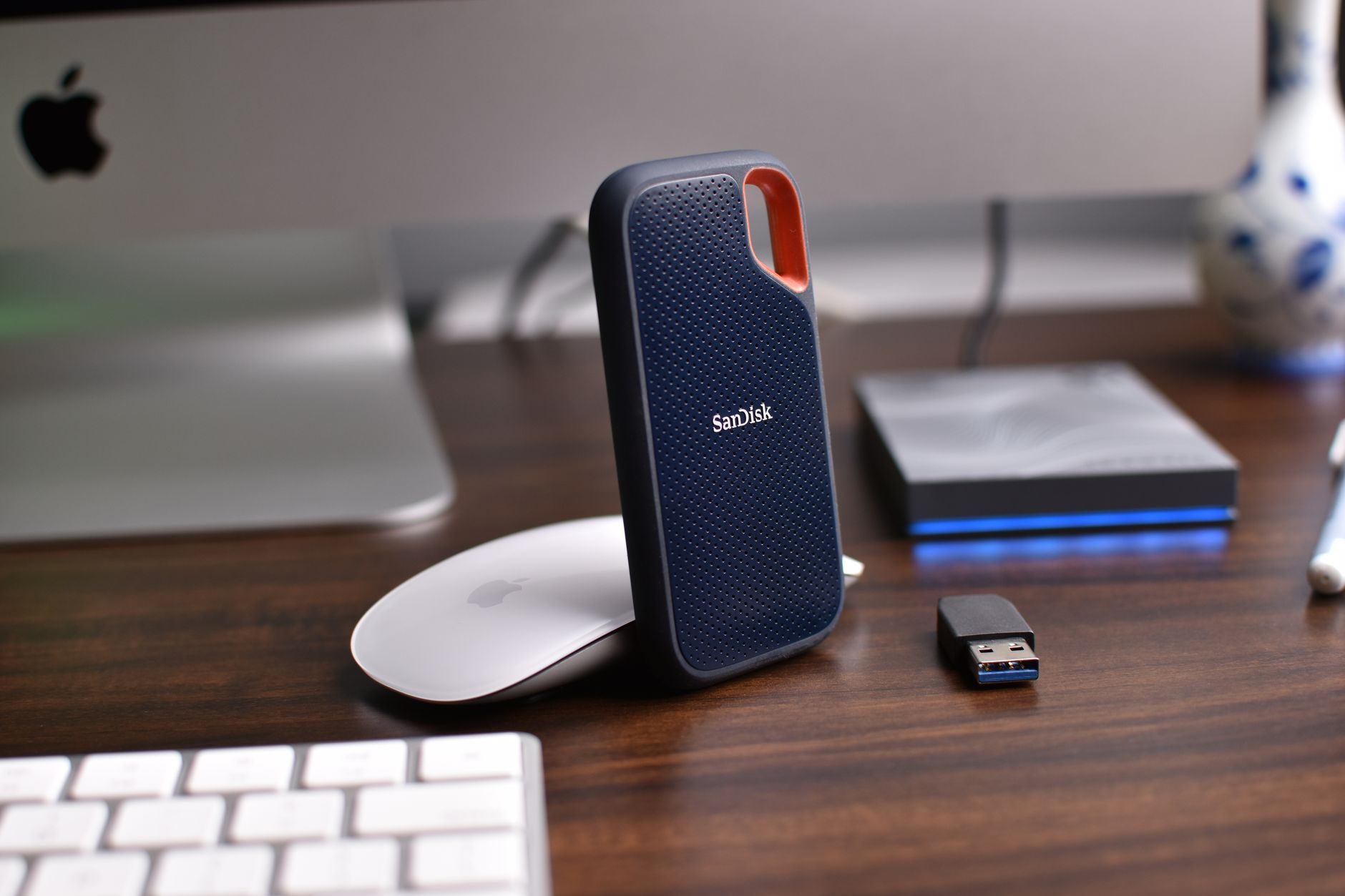
A few months ago I was editing a 4K video project and my external HDD literally stopped responding mid-export. Just... gone. The drive was fine, turns out — the USB cable had a loose connection — but in that panic I went down a rabbit hole of external storage options and spent way too long figuring out what actually matters versus what's just marketing noise.
So let me save you that time.
External storage is one of those categories where people constantly make the wrong choice — not because they're uninformed, but because the wrong myths keep circulating. Things like "SSDs are always better" or "NAS is only for businesses." Neither of those is true, and I'll get into why.
The Big Myth: SSDs Are Always the Right Call
I hear this constantly. "Just get an SSD, they're faster." Sure, but faster at what? And for what price?
A Samsung T9 2TB portable SSD runs around $140 USD and delivers read speeds up to 2,000 MB/s over USB 3.2 Gen 2x2. That's genuinely fast. But a Seagate Backup Plus Portable 4TB HDD costs about $85 — nearly half the price for double the storage.
If you're backing up photos from a trip or storing archived documents, you don't need 2,000 MB/s. You're not going to notice the difference. An HDD at 120–150 MB/s over USB 3.0 is perfectly fine for that. The "always buy SSD" advice is lazy and it costs people real money.
When SSDs Actually Win
There are real cases where SSDs make sense. If you're running applications directly off an external drive — like a Lightroom catalog or a Steam library — the random read/write speeds of an SSD matter a lot. HDDs get bogged down with small file operations.
Also, portability. SSDs are lighter, have no moving parts, and can take a knock without dying. I've dropped my Samsung T7 Shield a couple times — it has an IP65 rating and keeps going. Try that with a spinning drive.
HDDs Are Not Dead (Not Even Close)
Honestly, HDDs get unfair hate. For bulk storage, they're still the most cost-effective option on the market and probably will be through 2026 and beyond.
The WD My Passport 5TB at around $100 USD is a solid pick for anyone who needs a ton of storage on a budget. I use one as a cold backup drive — it sits in a drawer, I plug it in once a month to back up, done. Zero complaints.
The Seagate One Touch 5TB is another reliable option at roughly the same price point. Both use USB 3.0, which maxes out around 130 MB/s for sequential reads in real-world use. That's more than enough for backups and media storage.
Where HDDs Fall Short
Vibration and drops. A spinning platter drive is mechanical — if you're tossing it in a bag and moving around constantly, you're taking a risk. I wouldn't use an HDD as my daily carry drive. That's just asking for trouble.
Also, they're slower at random access, which makes them feel sluggish if you're doing anything that requires frequent small reads. Don't use an HDD to run your OS or apps.
NAS: Not Just for Businesses
This is the one I want to push back on hardest. A lot of people think NAS (Network Attached Storage) is complicated, expensive, or only useful for companies running servers. That's just not true anymore.
A Synology DS223 — a 2-bay NAS — costs about $300 USD without drives. Add two WD Red Plus 4TB drives (around $80 each) and you've got an 8TB RAID 1 setup (4TB usable, mirrored for redundancy) for under $460 total. That's a home server that's accessible from anywhere, handles automatic backups, streams media, and runs 24/7.
I set one up at home last year and it was way easier than I expected. Synology's DSM software is genuinely friendly to non-technical users.
Who Actually Needs a NAS
- Households with multiple people who need shared access to files
- Freelancers or creators with huge media libraries (I'm talking 2TB+ of footage)
- Anyone who wants an always-on backup that doesn't rely on a cloud subscription
- People with a Plex or Jellyfin media server setup
If you're just one person with a laptop and a modest photo library, a NAS is probably overkill. But if you've got a family of four where everyone's taking photos and videos, or you're working with large files regularly, it pays for itself pretty quickly versus paying for cloud storage.
"I used to pay $10/month for 2TB of cloud storage. After switching to a Synology NAS I pay nothing ongoing and have more redundancy. The math worked out in about 18 months." — That was me, doing the actual math last year.
The QNAP Alternative
Synology isn't the only option. QNAP's TS-233 is a solid budget 2-bay NAS around $180 USD, and QNAP tends to offer more advanced features for power users. The interface is a bit more complex though — I'd say Synology is better for beginners, QNAP for people who want to tinker.
Speed Specs That Actually Matter (and Ones That Don't)
Here's something the marketing doesn't make clear: the interface matters as much as the drive itself.
You can plug the fastest NVMe SSD into a USB 3.0 enclosure and artificially cap it at around 400 MB/s. You need USB 3.2 Gen 2 (10 Gbps) or Thunderbolt 3/4 (40 Gbps) to get anywhere near the drive's actual potential. The Samsung T9 I mentioned earlier needs a USB 3.2 Gen 2x2 port — if your laptop only has Gen 1, you're leaving a lot of speed on the table.
Check your port specs before buying an expensive fast SSD. I can't stress this enough. Most mid-range laptops still ship with USB 3.2 Gen 1 (5 Gbps max).
Specific Picks by Use Case
Best for Travel and Daily Carry
The Samsung T7 Shield (1TB, ~$90) is my go-to recommendation. It's rugged, compact at 98g, rated IP65, and delivers up to 1,050 MB/s reads over USB 3.2 Gen 2. Wirecutter named it their top pick for portable SSDs and I agree with that call.
If you're on a tighter budget, the Kingston XS2000 1TB at around $75 is close behind in performance and has a rubberized sleeve for drop protection.
Best for Pure Backup Storage
The WD My Passport 4TB at about $80 is the no-brainer here. It's compact for an HDD, bus-powered (no wall adapter needed), and WD's backup software is actually decent. For pure archiving, this is where your money goes the furthest.
Best for Video Editors and Creators
If you're editing 4K or higher, you want something fast and large. The SanDisk Professional Pro-G40 SSD 4TB at around $350 is a beast — IP68 rated, Thunderbolt 3 compatible, and hits 2,700 MB/s over Thunderbolt. That's overkill for most, but if you're editing 6K RAW footage, it's legit.
A more realistic pick: the Crucial X9 Pro 2TB at around $110. It does 1,050 MB/s reads, weighs only 51g, and the price-to-performance ratio is excellent. I've been testing this one and I genuinely like it.
Best NAS Setup for Home Users
Go with the Synology DS223 paired with two Seagate IronWolf 4TB drives (~$75 each). IronWolf drives are designed for NAS use — they handle the vibration from being on 24/7 better than desktop drives. Total cost around $450.
The 3-2-1 Backup Rule (and Why People Ignore It)
I'll be real — I ignored this for years and then lost some files I really wanted back.
The 3-2-1 rule: keep 3 copies of your data, on 2 different media types, with 1 copy offsite. So: your laptop, an external HDD, and a cloud backup or a drive stored at a different physical location.
External storage alone isn't a backup strategy. Drives fail. Houses flood. If your only copy of something important is sitting on one external drive in your office, that's not a backup, it's just a second copy in the same place.
Backblaze Personal Backup costs $99/year for unlimited storage and is honestly the easiest offsite solution for most people. Pair that with a local external drive and you're covered.
What About Wireless External Drives?
I should mention these because they come up. Drives like the SanDisk 2TB iXpand Wireless Charger Sync and the LaCie Fuel exist for people who want wireless access to their storage.
Honestly? They're convenient but slow. Wi-Fi transfers max out around 50–100 MB/s on a good day with Wi-Fi 6. They're fine for offloading phone photos or streaming video to multiple devices on your home network, but I wouldn't rely on one as a primary storage solution. The WD My Cloud Home is probably the best mainstream option in this category if you want plug-and-play wireless home storage.
Picking the Right Drive Doesn't Have to Be Complicated
Strip it back to three questions: How much do you need to store? Do you need to carry it around? And do you need fast transfer speeds for your workflow?
If you're moving files constantly and need speed — SSD. If you're archiving a lot of data cheaply — HDD. If you need shared access across devices or want a proper home backup system — NAS.
Don't let anyone tell you there's one answer for everyone. I've got a portable SSD in my bag, an HDD sitting on my desk for cold backups, and a Synology NAS at home. They all serve different purposes and none of them are redundant.
The worst thing you can do is buy the wrong type for your use case, or worse — buy nothing and lose files you actually care about. Get something. Today.