A couple of years ago I plugged in my old WD MyPassport, heard a clicking noise, and watched five years of project files disappear. That sound — if you've heard it, you know exactly what I mean — is the HDD death rattle. I lost everything because I was too cheap to spend $80 on a second backup.
That experience turned me into someone who thinks way too hard about external storage. I've since tested over a dozen drives across different categories, set up a home NAS, and spent a genuinely embarrassing amount of time reading benchmark threads on Reddit and Tom's Hardware. So let me save you some of that pain.
First: Know What Problem You're Actually Solving
External storage isn't one thing. The person who needs to back up their photo library has completely different needs than a video editor moving 4K files between machines, or someone running a small business that needs files accessible from multiple devices. Before you spend anything, be honest about your use case.
There are three main categories here: portable SSDs, desktop HDDs, and NAS (Network Attached Storage). They're not competing products — they solve different problems. A lot of people end up using two of these together, and that's often the right call.
Portable SSDs: Fast, Durable, and Genuinely Useful
If you're moving files regularly — between a laptop and a desktop, from a camera to a client's machine, off a drone — a portable SSD is what you want. No spinning parts means no death rattle, much faster speeds, and they can handle being tossed in a bag.
Samsung T9 (2TB)
This is the one I currently use and honestly recommend to almost everyone who asks me. The Samsung T9 runs at up to 2,000 MB/s read and 1,950 MB/s write over USB 3.2 Gen 2x2, which is legitimately fast for a portable drive. The 2TB version sits around $110–$130 depending on where you buy it.
It's rated IP65 for dust and water resistance and weighs just 98 grams. Wirecutter named it their top pick for portable SSDs and I'd agree — I've used mine daily for about eight months and it's been flawless.
SanDisk Extreme Pro v2 (2TB)
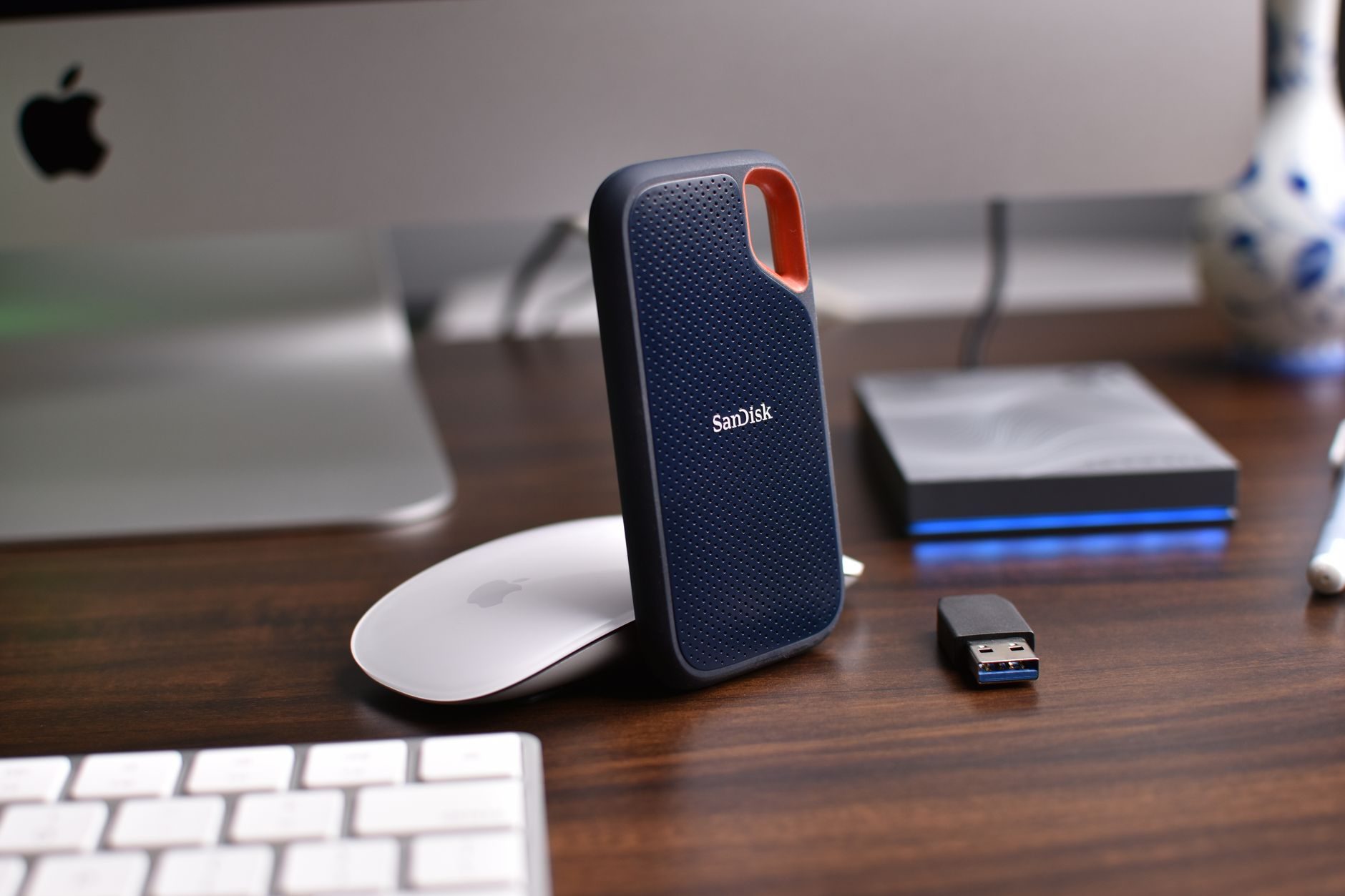
If you need something slightly more rugged and don't mind a slightly bulkier form factor, the SanDisk Extreme Pro v2 is another solid option. It also hits around 2,000 MB/s, has an IP55 rating, and includes a carabiner loop built into the case. Street price is about $120 for 2TB.
One thing I noticed: sustained write speeds on the SanDisk drop more than the Samsung does when you're pushing large transfers over 50GB or so. For most people that doesn't matter. For video editors doing long clips, it might.
Budget Option: Kingston XS2000 (1TB)
Not everyone needs to spend $100+. The Kingston XS2000 hits 2,000 MB/s read speeds and the 1TB version goes for around $60–$70. It's not as polished as the Samsung, but it performs well and it's a genuinely good deal. If you're in a market where Samsung pricing gets inflated by import costs, Kingston is worth looking at.
External HDDs: Slow, Cheap, and Still Totally Valid
Look, HDDs aren't glamorous in 2026. But they're still the most cost-effective way to store large amounts of data, and if you're not moving files around constantly, the slower speeds don't matter much.
The math is simple: you can get 4TB of HDD storage for around $80–$90. To get 4TB of SSD storage, you're looking at $200+. For backups, archival storage, and stuff you're not accessing daily, HDDs make complete sense.
Seagate Backup Plus Hub (4TB and 8TB)
The Seagate Backup Plus Hub is a desktop drive, meaning it needs wall power. That's a trade-off — less portable, but more storage capacity and more stable for long-term use. The 4TB version is around $85 and the 8TB runs about $140.
It comes with two USB-A ports on the front, which is actually kind of handy if your setup is tight on ports. Transfer speeds over USB 3.0 top out around 120–150 MB/s — totally fine for backups, slow if you're trying to edit directly off the drive.
WD My Book (6TB)
The WD My Book is the other name you'll see everywhere. The 6TB version goes for around $110–$120 and includes hardware encryption, which is a nice feature if you're backing up sensitive stuff. Performance is similar to the Seagate — around 130 MB/s in real-world use.
I've had more WD drives fail on me over the years than Seagate, honestly. That's anecdotal — Backblaze's data shows Seagate has historically had higher failure rates in their data centers — but in my personal experience the WD drives have been more reliable at the consumer level. Your mileage may vary.
Portable HDDs: Proceed With Caution
Bus-powered portable HDDs — like the WD Elements Portable or Seagate Expansion — are cheap and convenient. The 2TB versions go for around $50–$60. But they're fragile. A drop from desk height can kill them.
If you need portable storage that survives real-world conditions, spend the extra money on an SSD. Save the portable HDD for situations where it's going to sit on a desk and rarely move.
NAS: Overkill for Most, Perfect for Some
A NAS is a small box with drives in it that connects to your home or office network. Instead of plugging a drive into your laptop, you access your files over Wi-Fi or ethernet from any device. It sounds fancy and it kind of is, but it's also become a lot more accessible.
I set up my first NAS about two years ago and I spent way too long figuring out which one to get. So here's the short version.
Who Actually Needs a NAS
- You have multiple computers (or family members) who need access to the same files
- You want to run a Plex media server at home
- You're a small business that needs shared storage without paying for cloud storage monthly
- You want an automated backup solution that just runs without you thinking about it
- You shoot a lot of video or photos and have terabytes of content to manage
If none of those apply to you, you probably don't need a NAS. A good portable SSD plus a cloud backup service (Backblaze B2 is $6/month for unlimited) is simpler and cheaper.
Synology DS223 (2-Bay)
For most home users, the Synology DS223 is the starting point I'd recommend. It's a 2-bay NAS, meaning it holds two drives. You can run them in RAID 1 (mirrored — if one drive dies, the other has your data) or RAID 0 (combined — faster but no redundancy).
The DS223 itself costs about $280–$300 without drives. You then add your own. Two WD Red Plus 4TB drives (designed for NAS use) run about $75 each. Total cost to get started: around $430 for 4TB of protected storage.
Synology's DiskStation Manager (DSM) software is genuinely excellent. It's what makes Synology worth the premium over cheaper alternatives. The interface is clean, setup takes maybe an hour, and once it's running it basically runs itself.
Synology DS923+ (4-Bay)
If you need more capacity or you're running this for a small business, the DS923+ is the step up. It holds four drives, supports 10GbE networking via an expansion card, and has an AMD Ryzen R1600 processor that can handle transcoding for Plex without breaking a sweat.
The unit itself runs about $600. Load it with four 8TB WD Red Plus drives (about $130 each) and you've got 16TB of raw storage for under $1,100. In RAID 5, you'd have around 22.5TB usable with one drive failure protection. That's a lot of storage.
QNAP as an Alternative
QNAP makes solid NAS hardware — often with better specs at a lower price than equivalent Synology units. The QNAP TS-233 is a 2-bay unit that goes for around $170, significantly cheaper than the DS223.
The catch: QNAP's software isn't as polished as Synology's DSM, and QNAP has had some security vulnerabilities in recent years that required fast patching. If you're comfortable managing a device like that, it's a real option. If you want something you set up and mostly forget, go Synology.
"A NAS without a cloud backup is just a fancy single point of failure. Always pair it with an offsite backup — Synology's Hyper Backup to Backblaze B2 works great and costs almost nothing."
Quick Breakdown by Use Case
Here's how I'd actually match these up to real situations:
- Student or casual user: A 1TB Samsung T7 Shield (~$70) covers most needs. Durable, fast enough, affordable.
- Photographer or videographer: Samsung T9 2TB for active projects, a desktop HDD like the WD My Book 6TB for archives.
- Work-from-home with multiple devices: Synology DS223 with two WD Red Plus drives in RAID 1. One-time setup, then it just works.
- Small business or content team: Synology DS923+ with 4 drives in RAID 5, plus Hyper Backup to cloud.
- Just need cheap backup storage: Seagate Backup Plus Hub 8TB (~$140) plus Backblaze cloud backup ($99/year for a computer). Hard to beat.
A Note on Buying Storage in 2026
SSD prices have dropped a lot over the past few years and they're still slowly coming down. HDDs are basically flat in price. NAS hardware has gotten more capable without getting dramatically more expensive.
If you've been putting off setting up a proper backup system because it felt complicated or expensive, honestly — it's neither anymore. A 1TB portable SSD plus a Backblaze subscription gives you solid local and cloud backup for under $150 upfront and $99/year. That's less than a single therapy session to process losing five years of files.
Trust me on that last part.