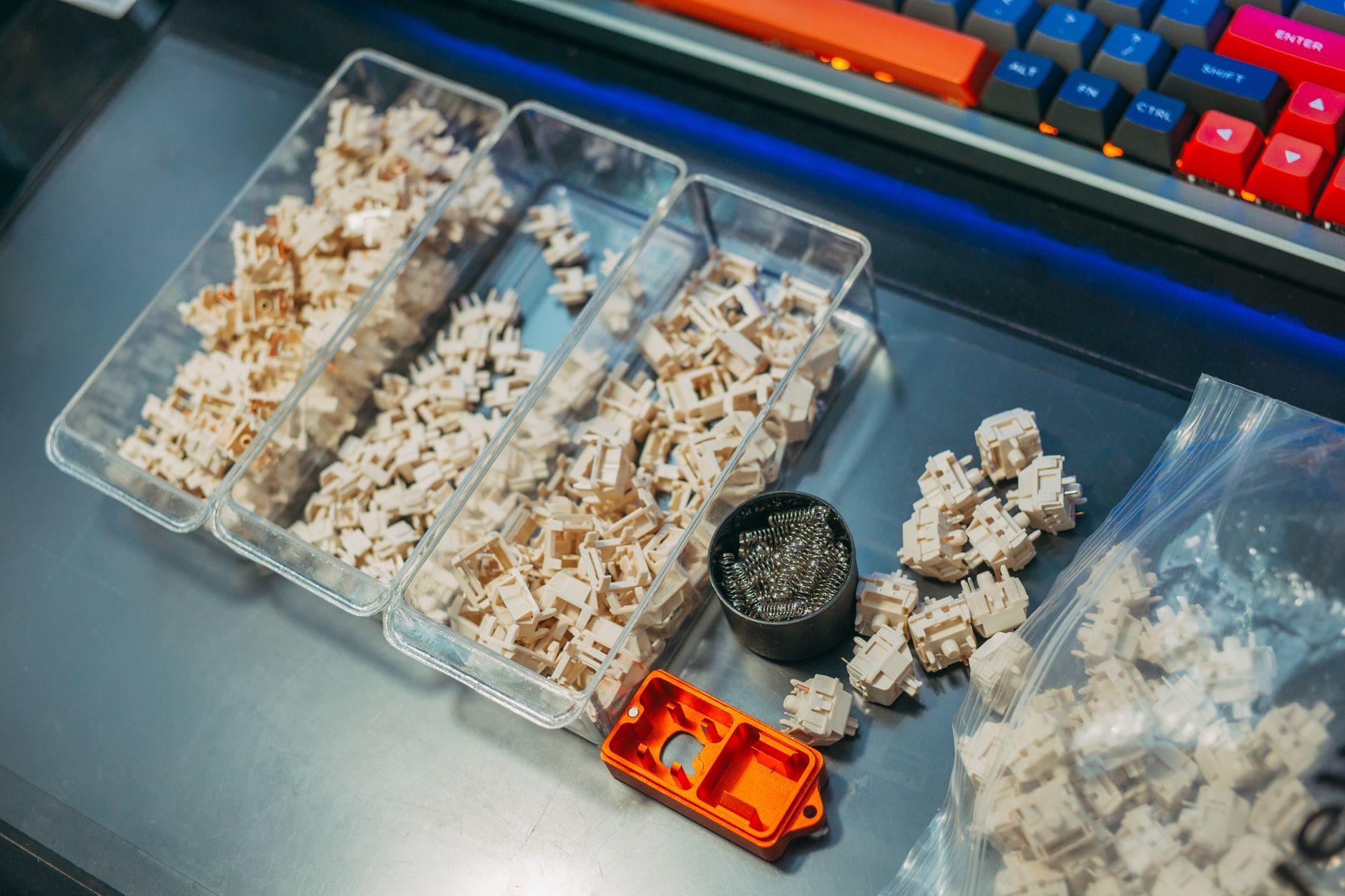
Two years ago I bought a mechanical keyboard on impulse at a computer fair. Paid about $85 for it, brought it home, and immediately hated the sound. Too clicky. My roommate hated it more. I returned it within a week.
The thing is, I'd made the most common mistake: I picked a switch without understanding what I actually wanted. A few months later I did the research, bought a Keychron Q1 Pro with Gateron G Pro Red switches, and I've been using it every single day since. Night and day difference.
So if you're thinking about getting into mechanical keyboards — or you bought one and you're not sure why it doesn't feel right — this is for you.
First, Why Bother With Mechanical at All?
Membrane keyboards — the flat, squishy ones that come bundled with most desktop PCs — are fine. They work. But "fine" is about all you can say for them.
Mechanical keyboards use individual physical switches under each key. Every switch has its own spring and actuation mechanism. That means more consistent feedback, longer lifespan (most mechanical switches are rated for 50 to 100 million keystrokes, compared to roughly 5 million for a typical membrane), and a typing feel you can actually customize.
They also tend to be more repairable. A single switch stops working? You can swap it out. That's not something you can say about a $15 membrane keyboard from a big box store.
Understanding Switches — This Is the Big One
Switches are the soul of a mechanical keyboard. Get this wrong and you'll hate your board no matter how nice it looks. There are three main types, and each one feels and sounds completely different.
Linear Switches
These feel smooth from top to bottom. No bump, no click — just a clean, consistent press all the way down. They're quieter than clicky switches (though not silent), and they're great for gaming because there's less resistance fighting your keystrokes.
Popular examples: Cherry MX Red (45g actuation force), Gateron Yellow (35g — one of the smoothest budget linears out there), and Novelkeys Cream (55g, beloved by the enthusiast community for their sound profile after break-in).
I type on Gateron G Pro Reds daily. Honestly, they're buttery and fast. If you're unsure, linears are usually the safe starting point.
Tactile Switches
These have a noticeable bump at the actuation point. You feel a little resistance, then a give — that's the switch registering. No click sound though, so they're more office-friendly than clicky switches.
The gold standard here is the Holy Panda (a community-favorite frankenswitch around $1.00–$1.20 per switch), but if you're not spending that much, the Gateron Brown is widely available and costs around $0.35–$0.50 per switch. Wirecutter has recommended tactile switches for writers who want feedback without noise, and I'd agree with that take.
Fair warning: cheap tactile switches like Cherry MX Brown get a lot of hate in keyboard communities. The bump is subtle — some people call it "scratchy" rather than tactile. It's not terrible, but there are better options at similar prices these days.
Clicky Switches
These are the ones people imagine when they think "mechanical keyboard." They have both the tactile bump and an audible click. Satisfying to type on. Absolutely infuriating to anyone within earshot.
Cherry MX Blue is the classic — 60g actuation, loud click, and polarizing as anything. Kailh Box White is a popular alternative with a sharper, crisper click and better water resistance due to the box design.
I'd avoid these for office use or shared spaces. I learned that the hard way.
"The switch you choose isn't just about typing feel — it's about your environment, your habits, and honestly, who else is in the room with you."
Keyboard Layouts — Smaller Isn't Always Better
This is where a lot of beginners get confused. Mechanical keyboards don't all look the same. The layout affects how much desk space you use, what keys you have access to, and how ergonomic the whole experience is.
Full-Size (100%)
Every key you'd find on a standard keyboard — full number row, function row, arrow cluster, numpad. The Logitech G513 (~$130) is a good example. Takes up a lot of space, but nothing's missing.
If you use a numpad regularly (accountants, data entry folks, spreadsheet power users), this is probably your layout. Don't let anyone talk you out of it.
TKL — Tenkeyless (80%)
Same as full-size but without the numpad. That's it. The numpad gets removed and you gain desk space — your mouse sits much closer to the board, which is a real ergonomic win for gaming and long work sessions.
The Keychron Q3 (~$99) is one of my favorite TKLs right now. Solid aluminum build, hot-swappable switches, and it looks fantastic. Rtings gave it high marks for build quality in their 2024 review.
75%
This is my personal sweet spot. You keep the function row, arrow keys, and a few nav keys (Delete, Home, End), but everything's compressed together with no wasted space. The Keychron Q1 Pro (~$199) that I use daily is a 75%. It fits on my desk alongside a full-size monitor arm with room to spare.
The tradeoff is a steeper learning curve if you're coming from a full-size. I spent about two weeks retraining my fingers. Worth it.
65% and 60%
These go smaller still. A 65% drops the function row but keeps arrow keys. A 60% drops arrow keys too — everything lives on layers accessed through key combinations.
The Ducky One 3 Mini (~$109) is a popular 60% that punches way above its price. But look — if you're new to mechanical keyboards, I'd skip 60% until you know you actually want that lifestyle. It requires a real commitment to relearning your workflow.
Hot-Swap vs Soldered — A Feature You'll Appreciate Later
Some keyboards let you pull switches out without a soldering iron. This is called hot-swappable, and it's a feature I now consider non-negotiable for my own boards.
Why does it matter? Because your switch preferences will change. I thought I'd love linears forever. Then I tried a board with Boba U4T tactiles and suddenly I understood the hype. With a hot-swap board, I can switch (pun intended) in about 20 minutes. With a soldered board, I'd need a soldering station and steady hands.
Most Keychron boards are hot-swappable. The Glorious GMMK Pro (~$169.99) is another solid hot-swap option with a gasket mount for a softer typing feel.
Keycaps — The Thing Everyone Notices
Keycaps are the plastic (or PBT, or ABS) caps that sit on top of the switches. They affect how the keyboard looks and sounds. They're also endlessly customizable, which is part of why this hobby gets expensive fast.
There are two main materials:
- ABS plastic — cheaper, smoother feel, but it gets shiny and greasy-looking over time from finger oils. Most stock keycaps are ABS.
- PBT plastic — more textured, more durable, resists shine better. Generally preferred by enthusiasts. Look for double-shot or dye-sublimated PBT for legends that won't fade.
The Akko ASA profile keycaps (~$35–$50 for a full set) are one of the best budget PBT options I've found. They ship globally and the colorway selection is genuinely great.
For premium sets, GMK keycaps are the enthusiast standard — ABS, but made with a manufacturing quality that makes the material less of an issue. Expect to pay $100–$180 for a GMK set. They're group-buy items, which means you often wait 6–18 months after ordering. I spent way too long figuring out how group buys worked before placing my first one.
Sound Profile — The Part Nobody Talks About Enough
Mechanical keyboards aren't just about how they feel. They're about how they sound. And the acoustics come from multiple factors working together: the switch, the keycap material, the case material, whether there's foam dampening inside, and even the desk surface underneath.
Aluminum cases (like the Keychron Q series) sound higher-pitched and "clacky." Polycarbonate cases sound deeper and "thocky" — that low, muted sound that's become extremely fashionable in 2025 and heading into 2026. Gasket-mounted boards have a slight flex that changes the acoustics further.
If you care about sound, look for boards that mention gasket mounting and foam dampening. The Keychron Q1 Pro has both, plus a silicone layer under the PCB. Out of the box it sounds noticeably better than cheaper boards.
There's also a whole modding rabbit hole — tape mods, PE foam mods, tempest mods — but that's a separate conversation.
What to Actually Buy Depending on Where You Are
I want to be real here: not everyone has access to the same products or prices. Shipping costs and import duties can make North American keyboard prices brutal for buyers in Southeast Asia, Africa, or South America.
Here's a rough breakdown by budget:
- Under $60: The Royal Kludge RK84 (~$45–$55) is a 75% wireless board that punches well above its price. Build quality isn't premium, but the typing experience is solid for the cost. Available on Amazon and AliExpress.
- $60–$120: The Keychron C3 Pro (~$39–$49 wired) or the Ducky One 3 (~$109). Both come with decent switches and solid build quality. Keychron ships internationally with reasonable rates.
- $120–$200: The Keychron Q1 Pro, Glorious GMMK Pro, or Nuphy Air75 V2 (~$119). This is the range where you really start getting premium materials and acoustics.
- $200+: You're in enthusiast territory. Custom boards, high-end switches, fancy keycap sets. The Mode Sonnet and Zoom75 both live here. Great if this becomes a hobby — overkill if you just want to type.
So How Do You Actually Find Your Match?
Honestly? The best method is trying before you buy. If you have a local mechanical keyboard meetup or a tech store that stocks display models, go. Type on stuff. Your preferences might surprise you.
If that's not possible — and for a lot of people it isn't — order a switch tester. You can get a sampler with 30–70 different switches on sites like KBDFans or Mech Keys for around $15–$25. Type on them for a few minutes each and you'll figure out your preference fast.
My actual recommendation for a first mechanical keyboard in 2026: the Keychron Q1 Pro with Gateron G Pro Red switches. It's what I use. It's hot-swappable so you can change your mind on switches. The sound is great out of the box. It connects wirelessly via Bluetooth or wired via USB-C. At $199 it's not cheap, but it's the kind of board you buy once and don't replace for years.
If $199 is too much right now, the RK84 with brown switches is a genuinely good starting point that'll cost you under $60 shipped from most markets. It's not perfect — the keycaps are ABS and the software is clunky — but the typing experience is real and you'll know within a week whether mechanical keyboards are for you.
The point isn't to get the most expensive board. It's to find the one you'll actually want to sit down and type on. Get that right and everything else is just details.