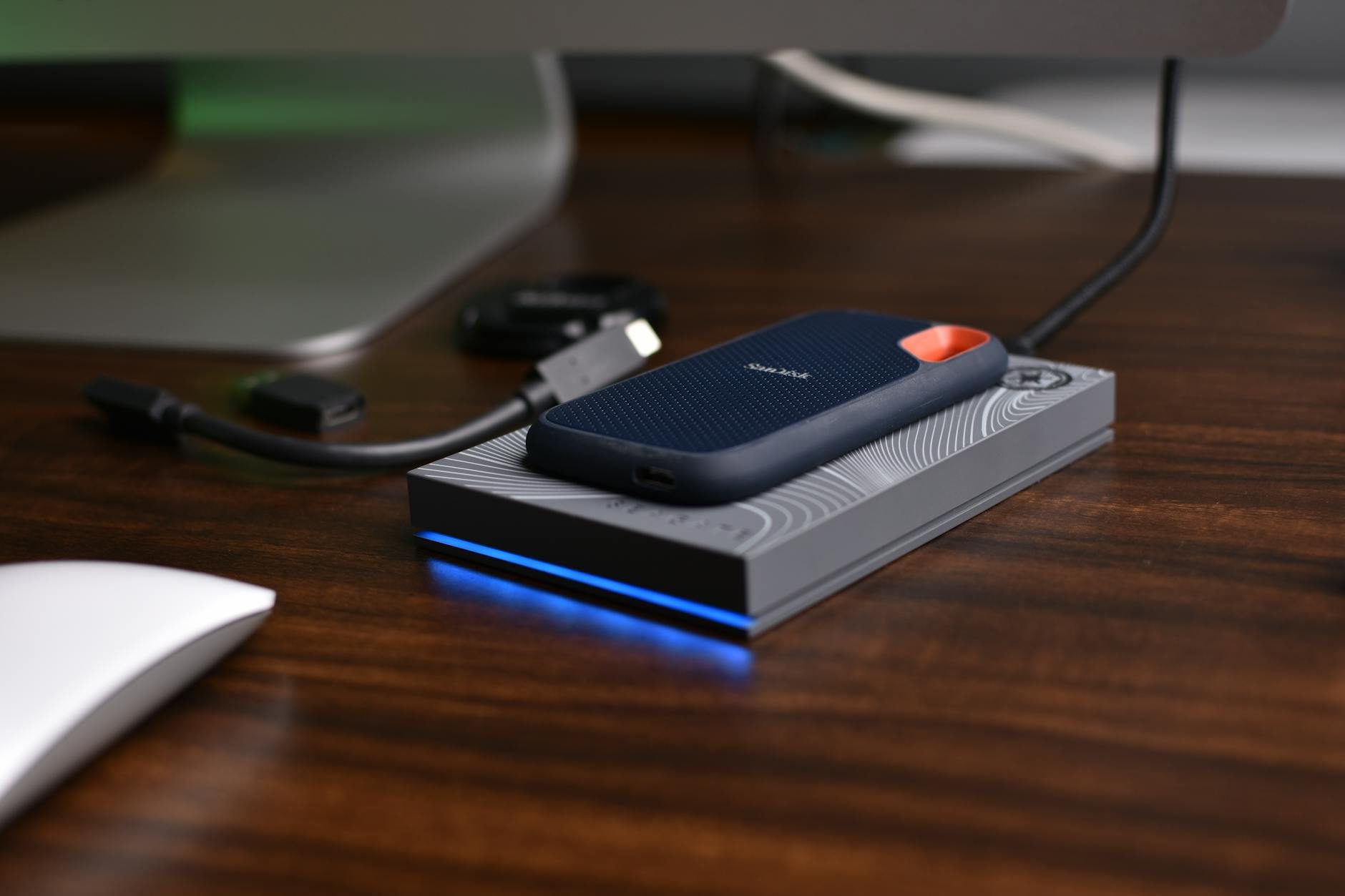
An external hard drive often holds years of photos, school work or business records. Many people only find out it was failing when they plug it in one day and it does not show up. Sometimes there is no warning at all. But often there are signs in the weeks before, and if you spot them early you can copy your files off in time.
This guide lists the warning signs, shows you how to check a drive's health with free tools, and explains what to do, and what not to do, when a drive starts to fail.
→ Strange clicking or grinding, very slow copying, and files that will not open are warning signs.
→ If you notice them, copy your most important files off first, before running any repair.
→ Check the drive's health with free tools such as CrystalDiskInfo (Windows) or Disk Utility (Mac).
→ No drive lasts forever. Keep a second copy of anything you cannot replace.
How often do drives fail?
The cloud storage company Backblaze publishes failure figures for the hard drives in its data centres every year. For 2025, across 344,196 drives, the annualised failure rate was 1.36%, down from 1.55% in 2024. In plain terms, out of every 100 drives running for a year, one or two failed.
That sounds low, but remember two things. First, these are drives in cool, clean data centres, not drives carried in a bag through Accra traffic. Second, a small chance every year adds up over many years. The safe approach is to assume any single drive can fail and keep another copy.
Warning signs to watch for
1. Clicking, grinding or beeping sounds
A spinning hard drive normally makes a soft whirr. Repeated clicking, grinding or beeping can mean a mechanical problem, for example with the arm that reads the data. If you hear this, stop using the drive except to copy your most important files, and if it gets worse, stop completely. Portable SSDs have no moving parts, so they do not click; a noisy SSD usually means a problem with something else.
2. Copying becomes very slow or stops halfway
A failing drive may struggle to read some parts of the disk and keep retrying. Copying that used to take minutes now takes hours, or freezes at the same file. Try a different cable and USB port first; if it is still slow, treat it as a warning.
3. The drive keeps disconnecting or does not appear
If the drive disappears in the middle of copying, or the computer does not see it, the cause may be the cable, the USB port, or not enough power, so test those first. Many portable drives in Ghana are used with cheap or damaged cables. If it fails on several cables and computers, the drive itself may be the problem.
4. Files will not open, or folders vanish
Photos that show half grey, documents that say they are damaged, or folders that are suddenly empty can mean parts of the disk can no longer be read.
5. The computer asks you to "format" the drive
If Windows or a Mac says the drive needs to be formatted before use, do not click Format. Formatting prepares the drive for fresh use and makes your existing files much harder to recover. Close the message and read the steps below.
6. The drive gets very hot
Drives get warm during long copies, which is normal. But heat is bad for electronics, and rooms in Ghana can be hot. Keep the drive on a hard, open surface, out of direct sun, and not under a pillow or inside a closed bag while it works.
How to check a drive's health for free
Most hard drives and SSDs keep internal health records called S.M.A.R.T. data. Free tools can read them and give you a simple verdict.
| Computer | Free tool | What to do |
|---|---|---|
| Windows | CrystalDiskInfo, from its developer's site crystalmark.info | Open it with the drive connected. It shows a health status such as "Good", "Caution" or "Bad". The developer says it supports only some USB drives, so an external drive may not show up. |
| Windows or Linux | SeaTools, from Seagate's support site | Seagate describes it as a quick diagnostic tool that checks a drive's health. |
| Mac | Disk Utility, built into macOS | Choose View → Show All Devices, select the drive, then click First Aid and Run. |
Other brands, including Western Digital and Samsung, offer their own drive tools on their official websites. Only download these tools from the official developer or manufacturer site, never from a random download page, which may bundle malware.
What to do when a drive is failing
- → 1. Stop adding new files. Do not save anything new to the drive.
- → 2. Copy the most important files first. Do not try to copy everything at once. Start with the folders you would cry over, such as family photos or business accounts, then move to the rest.
- → 3. Copy to a healthy drive or the cloud. Use a different drive with enough space, or upload the most precious files.
- → 4. Only then try repair tools. Repair tools such as Windows' disk check or Disk Utility's First Aid fix the file system, not worn-out hardware. On a physically failing drive, long scans can make things worse, so save your files first.
- → 5. If the drive clicks loudly or will not appear at all, stop. Every extra attempt can cause more damage. This is the time for a professional data recovery service.
Professional data recovery: be careful who you trust
Real data recovery from a damaged drive is skilled work done in special clean conditions, and it can be expensive. There is no guarantee of success.
- → Never open a hard drive yourself. Dust inside can ruin the surface that holds your data.
- → Ask questions first. A trustworthy service will explain what they will try and give you a quote before starting.
- → Think about privacy. Whoever recovers the drive can see everything on it. Use a business with a real address and a track record you can check.
- → Watch for scams. Be wary of anyone who demands full payment up front by mobile money and promises "100% recovery".
Cyber Security Authority (CSA): call or text 292, WhatsApp 0501603111, email [email protected]
Ghana Police: 18555 or 191
MTN Mobile Money fraud: dial 419, or *170# → My Wallet → Report Fraud
How to make your next drive last
- → Do not drop it, especially while it is running. A spinning hard drive is most fragile when in use. If you carry a drive every day, a portable SSD is tougher.
- → Use a padded case and a good cable. Replace cables that are bent or loose.
- → Always eject before unplugging.
- → Keep it dry and cool. Damp and heat both shorten the life of electronics.
- → Buy from a trusted shop. Fake drives that report more space than they really have are common. Our checked external storage guide explains how to test a new drive.
- → Plan to replace old drives. If a drive is many years old and holds your only copy of something, copy it to a newer drive now, before any warning sign appears.
Mistakes to avoid
- → Clicking "Format" when the computer asks.
- → Running long repair scans before copying your important files.
- → Shaking, hitting or putting the drive in the freezer. These "tricks" from the internet can destroy what is left.
- → Keeping your only copy of family photos on one drive.
- → Blaming the drive before trying another cable, port and computer.
The real fix for drive failure is not a better drive; it is a second copy. Our guides on backing up your phone photos and the 3-2-1 backup rule show you how.
Frequently asked questions
How long does an external hard drive last?
There is no fixed number. It depends on how it is made, how it is used and how it is treated. Backblaze's data-centre figures show that most drives keep working each year, but some fail early. Always keep a second copy.
Are SSDs safer than hard drives?
Portable SSDs have no moving parts, so they handle bumps and drops better. They can still fail, so they still need a backup.
My drive is not showing up. Is my data gone?
Not necessarily. Try another cable, USB port and computer first. If it still will not appear, or it clicks, stop using it and talk to a reputable recovery service.
Can I fix a clicking drive at home?
No. Clicking usually means a mechanical problem that needs a professional. Home attempts often make recovery harder.
About this guide
This guide was rewritten in November 2026 after a fact-check; every rule, figure and step has been checked against official sources where they exist. Written and reviewed by the TechTrendi Editorial team. Last reviewed: November 2026. Prices are US prices unless stated, and apps and settings change — if something here no longer matches, tell us at [email protected].